Monday, 12 August 2013

Impotent tips about your cpu configuration

This is a common problem to all of us, when ever we buy our first computer we just go to shop and tel the shop keeper what to buy, why not we decide what our need is and what we need to buy?????  
So this post is all about, i was also confused what to buy ?  after all this long year i learnt what was my purpose and what is worth of value.
Suppose if your need is of official purpose computer, what is the need of having a 20 thousand Rupee ( 329.62 USD ) computer  ? i can do the same job under a 8 thousand Rupee ( 131.85 USD ) suppos my wark is to Check email, surfing internet, using ward and excel .

So hare is the solution -
Common factors
You need 512 MB of RAM for each 80 GB of your computer hard Drive. Depend's it is a SATA hard drive so if u r using 160 Gb of hard drive you need at-list of 1 GB of RAM, so if u r using a 500 GB of hard drive it is recommended that you use at-list of   4 GB of RAM memory.
If you are dealing with Graphic or you are a user of high Graphic games then it is recommended to us a Graphic card of at-list of 1 GB and 16 x speed, suppose u are a user of Autodesk Maya, 3d Studio, or a game loving person like me, it is very much to use a processor of Intel core i3 or AMD Phenom, a graphic card of 1 GB memory, 4 GB of RAM, and at-list Hard Drive of 500 GB.

Configurations -
Office Computer Under 135 USD or 7500 INR - 

  1. Processor  - DUO Core 
  2. RAM - 1 GB DDR 3
  3. Hard Drive - 160 GB 
  4. Main Board - Compatible to upper Requirement
  5. Rest Depends upon You     
Gaming cpu or high Graphic cpu under 20,000 INR  or 329.62 USD - 
  1. Processor - At-list Intel Core i3 or AMD Phenom.
  2. RAM - At-list 4 GB DDR 4
  3. Hard Drive - At-list of 500 GB
  4. Main Board - Compatible to upper Requirement
  5. Rest Depends upon You

Keep in mind what you want to do with your computer. Have fun keep enjoining have fun. If you have any quarry, mail me at anuragjana@gmail.com 

Sunday, 11 August 2013

How to keep computer fast

3 easy steps to keep your computer fast
we all computer user's face this problem that our computer become slower day by day and some of us dont no what to do, so we just format our computer hard drive or we download junk of useless software over internet, But the good news is that, all required software could be found inside our pre-load windows, it does not matter which ever version of Windows we use. Just follow this simple step's and your computer will be as fast as it was. This is my personal recommendation that you follow this step's at a regular interval e.g. once at every 2 weeks.

Step 1 Disk Defragmenter   - 
This is a very useful Tool that windows have given, If u are using Windows xp, go to your Start menu then click   All programs, click at Accessories, under it you will find System Tools, in System tools click on Disk Defragmenter, a window will appear, no select the drive you want to Defregment and click on Defregment..
How to find Disk Defragmenter
Waite until it is over, and you r good to go. It is recommended to Continue this step with all your disk.
Defragmenter Screen
Step 2 Disk Cleanup -
This Pre load software detect all un-useful files in your system and delete them, but don't be confuse, it cannot detect Virus or malicious file, even this could delete some useful files so follow this step closely to my instruction. To locate this software the step is same as above,  go to your Start menu then click   All programs, click at Accessories, under it you will find System Tools, in System tools click on Disk Disk Cleanup,
Disk Cleanup option
so locate your disk and clean up, it is recommended to clean the drive which contain windows. It is important to select just the temporary internet file and only Microsoft Error reporting Temporary File . Please do not clean any other file as those are part of your windows file.
Clean Up Window
Step 3 and most Important -  
Keep your Desktop clean, do-not put icons or file in your desktop, keep it in a minimum us, because the desktop is only a folder from your drive from where your windows is loaded, and as to run your computer run the windows always keep your windows file on RAM (Random Access Memory), so if you load your desktop with load of Icon or file it will slow your total computer performance 


That's All, follow this simple step's, it seems to be very common tips but let me assure you it work magical , keep using and keep enjoying. If you have any farther quarry then please mail me at anuragjana@gmail.com


Saturday, 10 August 2013

Some basic information for Purchasing Computer Component

Some basic information for the above item.
When purchasing the Cabinet, make sure it is a ATX cabinet as all modern Main board or Mother Board are of ATX Layout. After that it is your choice of design, but if u r planing for a CPU for long run then it s batter to buy a big cabinet in size.
Make sure your power supply is at-list of 450 Volt and should have both SATA and PATA power connector, as because SATA connector will be used for Haed drive, DVD drive and PATA will be used for Cabinet fans.     
Mother Board with 775 Processor Slot
While Purchasing Main Board or Mother Board make sure the Processor slot number, as types of processor fits and support different Mother Board. For e.g a main board with the processor slot of 775 will support the processor of 775, and if the main board support Intel I3 Processor then you cannot use a Core 2 Duo Processor, So make sure about the Combination's.The main board come's with different RAM SLOT such as DDR3, DDR4 or DD5 so make sure to find the appropriate RAM for your Mother Board
DDR3 RAM
 . Read Assemble the C.P.U (Central Processing) or How to Assemble Desktop Computer

How to assemble a desktop cpu

Hi,
In this post i will describe about how to assemble a Desktop Computer.
First of all u need the different parts that u need to install in your computer C.P.U.(Central Processing Unite), also refers as the brain of your computer.

List of some basic thing's for your C.P.U.
  1. Cabinet and SMPS(Power Supply).
  2. Main Board or Mother Board.
  3. Processor and Processor Fan
  4. RAM(Random access memory)
  5. Hard Drive or hard disc(SATA or PATA)
  6. DVD or Blue Ray drive(Optional).
  7. Cabinet Fan 
Some basic information for the above item.
When purchasing the Cabinet, make sure it is a ATX cabinet as all modern Main board or Mother Board are of ATX Layout. After that it is your choice of design, but if u r planing for a CPU for long run then it s batter to buy a big cabinet in size.
Make sure your power supply is at-list of 450 Volt and should have both SATA and PATA power connector, as because SATA connector will be used for Haed drive, DVD drive and PATA will be used for Cabinet fans.     
While Purchasing Main Board or Mother Board make sure the Processor slot number, as types of processor fits and support different Mother Board. For e.g a main board with the processor slot of 775 will support the processor of 775, and if the main board support Intel I3 Processor then you cannot use a Core 2 Duo Processor, So make sure about the Combination's.The main board come's with different RAM SLOT such as DDR3, DDR4 or DD5 so make sure to find the appropriate RAM for your Mother Board.

That's All you need, Lets Assemble the C.P.U (Central Processing)

Star with your Cabinet, most Cabinet comes with SMPS fited inside but if it is not scrue up the smps inside,, find the appropriate place inside cabinet, most commonly you will manage to find it inside the cabinet  look at the back bottom on your cabinet or back top in your cabinet, secure it with screw. Now it is time to insert the Main Board or Mother Board, you will find the hole inside your cabinet surface, match it with the holes present in your main board, no secure it with scrue. 
Make connection with power supply, you will find two different set of cord from your SMPS, one with 4 socket in it, and other one with 20 or in some case 24 socket in it, secure those two connection with motherboard, this are only two connection that your mother board will need, now install your processor, open up the processor slot in your motherboard place the processor and lock the processor slot, lock mechanism will be inbuilt in your motherboard. Once the processor in place apply Some heat compound on top of it, no place the processor fan in it, if it is a intel processor fan then you will find 4 plastic lock on the top of the fan, place those scrue on the hole made in the mother board, no press the 4 scrue and rotate each scrue on the direction printed on it's top, make sure it is tight and secure, no you will find a cord with 3 wares coming out of the processor fan connect it with your mother board socket, it will be a three pin noted as CPU fan connect it.
No it is time to install the RAM, in most mother board you will find the RAM socket just beside the Processor Socket, the RAM Slot have two lock, one at each end press it to open, now insert the RAM, press the RAM from both end and the lock will automatically secure double check the RAM, if you us more than one RAM repeat the process for each of you RAM and slot.
Connect Your Power Button, and front panel USB to the board, you will have to find a connection in the board written as f-panel it is the connection for your power switch, Restart Switch, Power led, HDD Led, connect it to your switch's and LED's. Now you will find front USB as written as USB 2.connect it with your Front USB.  
Now it's Time to Start up your computer and make sure you have the display, Connect your monitor to the back panel, Connect you power cord if you have the display then everything is working fine if not the see our trouble shooting. No turn of your computer and install the Hard drive and DVD drive connect it with your SMPS SATA power connector, and SATA to SATA cord From your Hard Drive to your Mother board Same for your DVD, repeat the process for as many Hard drive you want to use or DVD, Blue Ray Drive.  
So for Hardware par your computer is ready but you cannot use it without a Operating system, Read our Format and how to load OS Part to know more.

Friday, 9 August 2013

How to Install Windows XP

First of all you need to have a copy of windows along with the Serial key or product id.
windows xp


you have two scenario. 1. First you have already loaded windows in your system
                                    2. your system doesn't have nay windows 

1. First you have already loaded windows in your system
Insert the windows disc in your CD or DVD reader, if your computer is set up with auto play mode a welcome screen will appear, you need to click on the Install Windows XP and follow the wizard.
And if your computer is not set for the auto play option then just go to your optical drive (CD or DVD) and find the installer (autorun.exe) double click the .exe file and wizard will appear.

wizard 

   2. your system doesn't have any windows 
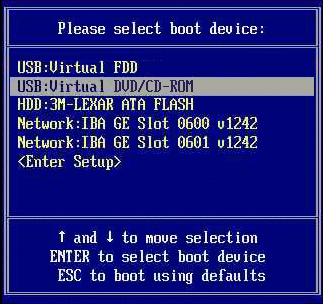
First insert the windows in your CD or DVD drive, Restart Your computer, Keep on presing ctrl + Alt + Del key to pull up the Boot device selection option (the key combination  for this option may deffer), select your DVD or CD drive to Boot from.
Boot Device Menu
Your system will ask you to press space to boot from cd (it only appears for a few seconds),, press the Space bar, Windows XP Setup begins. During this portion of setup, your mouse will not work, so you must use the keyboard. On the Welcome to Setup page, press Enter. Next You will find windows xp licence agreement page press F8 to continue, you will be directed to a page where you have to select the hard drive partition where you need to select where you want to install your windows select the partition and select enter. If the hard drive does not have any partition thent you will need to allocate the space as you need. For more detail's read my Partition and format page. You will be redirected to a next page where you will manage to find the Formatting file system, if the partition is formatted earlier the in the list you will find the option Leave the current file system or if it is not use NTFS  file system,you could also use a quick format using NTFS file system.
Windows XP erases your hard disk drive using a process called formatting and then copies the setup files. You can leave your computer and return in 20 to 30 minutes.
During this process the computer will restart several times leave as it is.
Now a wizard will appear follow the wizard it will ask you about Your Product Id, Time zone name and etc. provide it and follow the wizard.  


All about Computer

Hi,
This Blog will give you information about the various aspect of assembling the deskctop computer, how to install Hardware, how to format Hard drive, How to load OS Operating System, Install Driver's. And  other useful tips about your Laptop nad desktop Computer.

Read our
How to assemble your desktop hard ware 
Some Basic Information about hardware Configuration